
Guides
"Chatbot Quick Reply Buttons: How to Choose and Word Them"
By ZoeyAI · · 8 min read
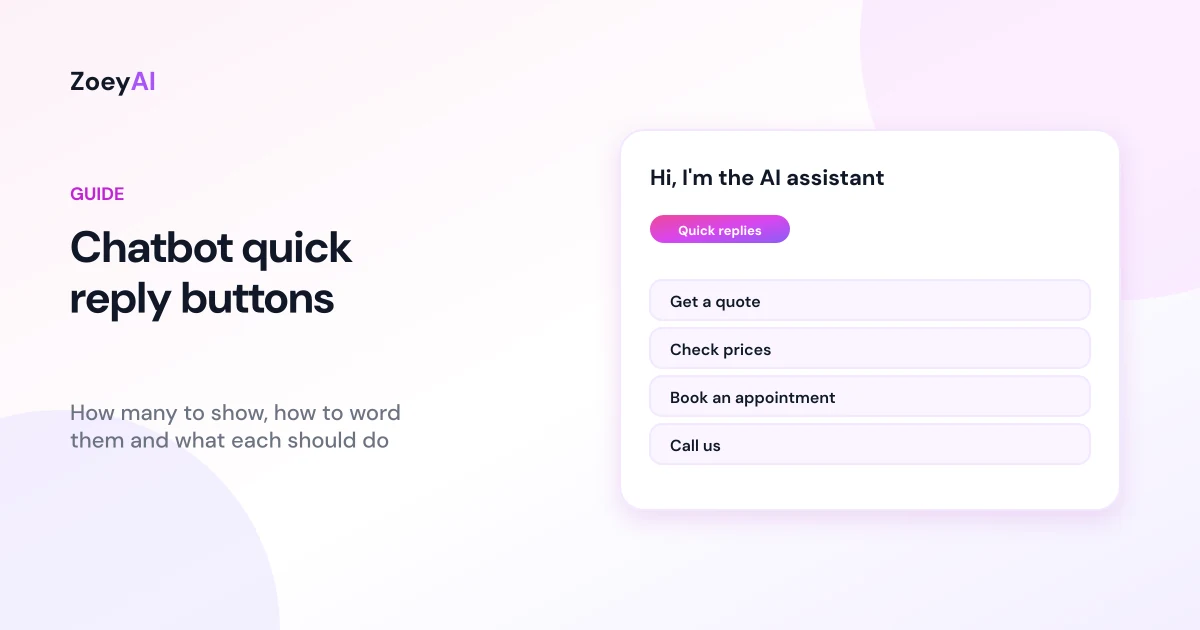
Chatbot quick reply buttons are the small tappable options that sit under a chat greeting: "Get a quote", "Opening hours", "Book an appointment", "Call us". They give visitors an easy first step, especially on a phone, where typing a question into a tiny chat box is the last thing most people want to do. Done well, they steer people towards the conversations that matter to your business. Done badly, they become a row of vague labels nobody taps.
This guide explains how to choose your quick reply buttons, how many to show, how to word them, which action each button should take, how to keep them accessible and how to review them over time. It also includes example sets for different industries you can adapt.
What are chatbot quick reply buttons?
Quick reply buttons are preset options shown in the chat window. When a visitor taps one, the chatbot either receives that text as if the visitor typed it, or the button does something else, such as opening a page or starting a phone call. Microsoft's Bot Framework documentation, for example, describes suggested actions, also known as quick replies, as buttons shown to the user for a single turn of the conversation.
They are different from a chatbot that only offers buttons. An AI chatbot can still understand anything the visitor types. The buttons are shortcuts for the most common reasons people open the chat, not a menu they are forced to follow. That distinction matters: usability research from Nielsen Norman Group on the user experience of chatbots found that chatbots struggle when users deviate from simple linear flows, so buttons should sit alongside open text, never replace it.
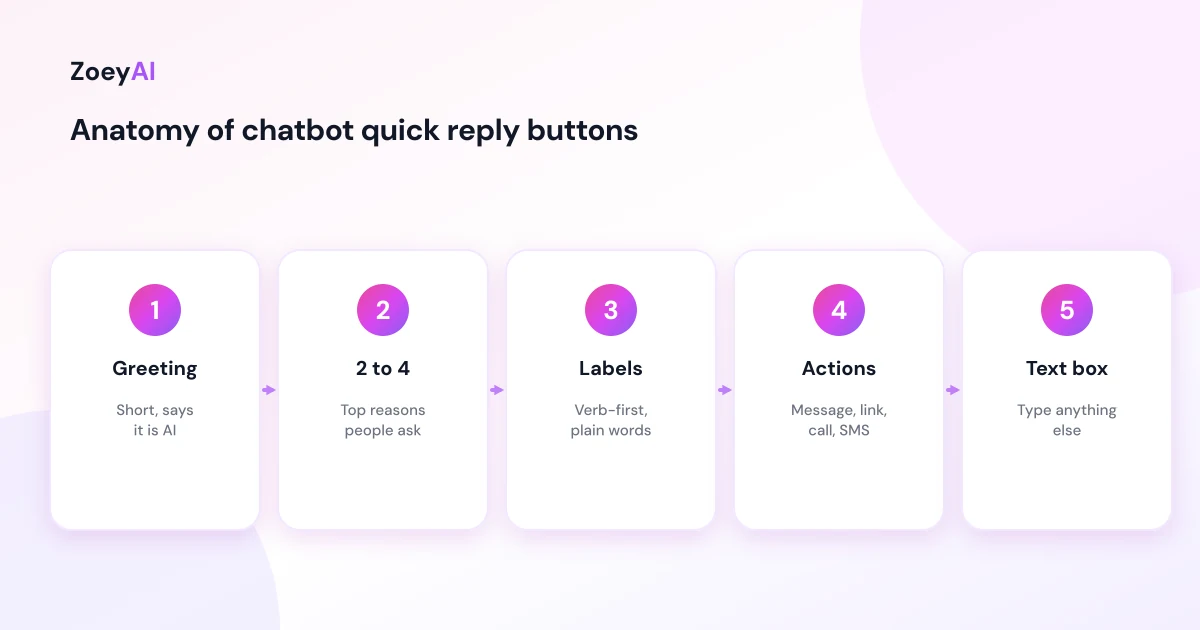
In ZoeyAI, quick reply buttons live under Settings, Greetings. They appear under your greeting before the visitor types anything, and each button can send a message to the AI, open a link, call a phone number, send an SMS or open WhatsApp.
How many quick reply buttons should you show?
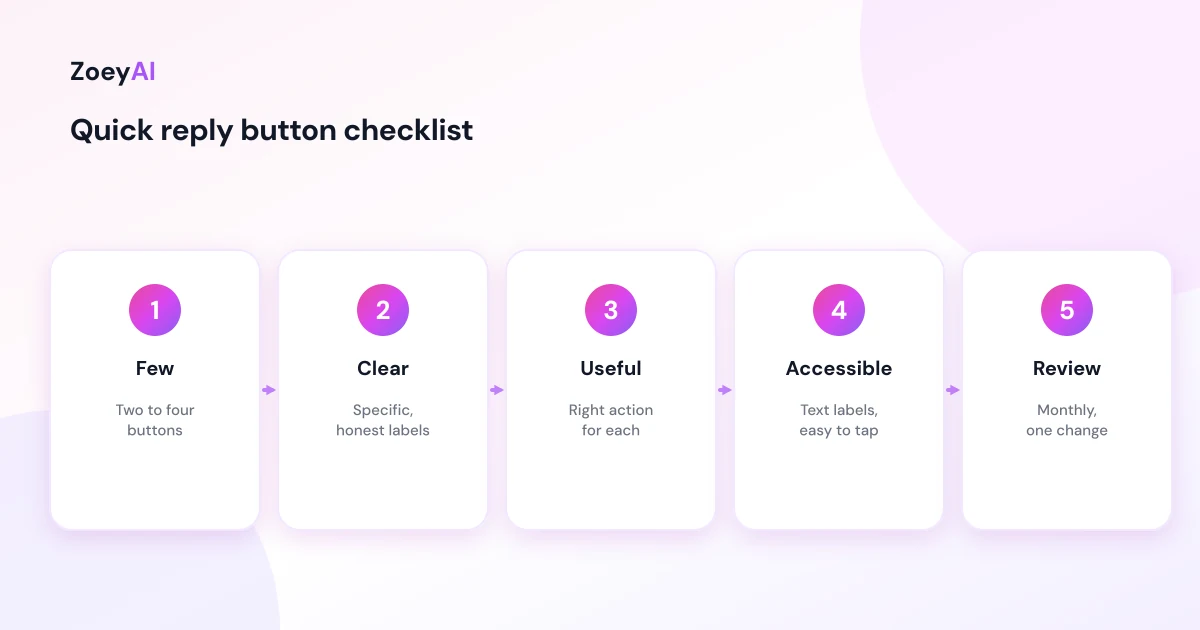
Fewer than you think. Two to four buttons is a sensible range for most small business websites. More than that and the buttons start to crowd the greeting, push the text box out of view on mobile and make the visitor read a list before they can do anything.
ZoeyAI allows up to four buttons, with labels of up to 40 characters, which forces useful decisions. A simple way to choose:
- List the reasons people contact you. Look at your inbox, phone notes and past chat conversations.
- Pick the top two or three. Usually some mix of pricing, booking or quoting, and opening hours or location.
- Add one direct contact option if it suits your business. A "Call us" button for trades or clinics, or "Talk to our team" if you staff live chat.
If you are unsure which questions come up most, our guide to chatbot metrics to track explains how to find the questions visitors actually ask.
How to word quick reply buttons
Button labels are tiny pieces of copy, and plain language matters. The Australian Government Style Manual's guidance on plain language and word choice is a useful reference: use common words, be specific and write for the reader.
Practical rules for labels:
- Start with a verb or a clear topic. "Get a quote", "Book a tour", "Check prices", "Opening hours".
- Use the visitor's words, not your internal jargon. "Book a check-up" rather than "Schedule a preventive appointment".
- Keep it short. Two to four words fits most screens without wrapping.
- Make each button distinct. "Prices" and "Costs" side by side will confuse people.
- Be honest about what happens. If a button opens your booking page in a new tab, "Book online" sets the right expectation. If it calls you, say "Call us".
- Avoid emoji-only labels. An icon can help, but the text should make sense on its own.
Choose the right action for each button
Each button should do the most useful thing for that request. ZoeyAI supports five actions, and most chatbot tools offer something similar.
- Send a message to the AI. Best for questions that need an answer: "Check prices", "Opening hours", "Do you service my area?" You can also set a fuller message behind a short label, for example the label "Prices" sending "What are your prices?" so the AI has more context.
- Open a link. Best when a page already does the job better than chat: an online booking system, a quote form or a menu.
- Call a phone number. Best for urgent or high-value enquiries, such as emergency trade call-outs.
- Send an SMS. Useful for businesses where customers prefer texting, such as mobile services.
- Open WhatsApp. Useful if your team already handles customer messages there. Our guide to the WhatsApp chatbot for business in Australia covers when that channel makes sense.
A common mistake is making every button a link. If all four buttons send people away from the chat, the chatbot never gets a chance to answer questions or capture an enquiry. Mix answer buttons with one or two action buttons.
Quick reply button examples by industry
Starting points you can adapt to your own business:
- Trades: "Get a quote", "Do you cover my area?", "Call us"
- Dental, physio or vet clinic: "Book an appointment", "Fees", "Opening hours", "Call the clinic"
- Real estate: "Book an appraisal", "Upcoming inspections", "Talk to an agent"
- Restaurant or cafe: "See the menu", "Book a table", "Opening hours"
- Accounting or legal: "Our services", "Fees", "Book a consultation"
- Ecommerce: "Track my order", "Shipping and returns", "Sizing help"
- Childcare or tutoring: "Book a tour", "Fees", "Enrolments"
- Gym or studio: "Membership prices", "Class timetable", "Book a free trial class"
Only offer a button if the chatbot can deliver. "Track my order" only works if the chatbot or a linked page can actually do it. If a button leads to "Sorry, I can't help with that", remove or reword it.
The greeting above the buttons matters too. Our chatbot greeting message examples include openers written to work with a short set of quick replies.
Make quick reply buttons accessible
Buttons need to work for everyone, including people using screen readers, keyboards or touchscreens with limited dexterity. WCAG 2.2 includes a minimum target size success criterion whose intent is to help people activate targets without accidentally hitting a neighbouring one. Practical points:
- Real text labels that a screen reader can announce, not images of text.
- Enough size and spacing between buttons so they are easy to tap.
- Visible focus states so keyboard users can see which button is selected.
- Not colour alone to show meaning, such as a red button for "urgent".
- The text box still available, so nobody is forced into the buttons.
Common mistakes
- Too many buttons. The greeting disappears under a wall of options.
- Vague labels. "Learn more", "Info" and "Other" tell the visitor nothing.
- Buttons the chatbot cannot answer. Check every button sends the visitor somewhere useful.
- Every button leaves the chat. Links have their place, but answers and lead capture happen in the conversation.
- Out-of-date buttons. A "Book Christmas parties" button in March looks neglected.
- Promises in labels. "Instant quote" or "Free consultation" must be true. If quotes need a site visit, say "Request a quote".
How to review your quick reply buttons
Treat buttons like any other website copy and review them regularly:
- Read a sample of conversations each month. Which buttons do visitors tap, and which questions do they type instead?
- Swap the least useful button for a question people keep typing.
- Change one thing at a time so you can tell what made a difference.
- Check after any business change: new services, new booking system, new phone number or seasonal hours.
- Test on a phone. Make sure labels do not wrap awkwardly and buttons are easy to tap.
In ZoeyAI you can reorder buttons, switch a single button off without losing its settings, or turn all buttons off with one switch.
What it costs
ZoeyAI pricing is in AUD and includes GST. There is a free Starter plan for live chat without AI. AI plans start at $29 a month incl. GST on Basic (100 conversations a month, knowledge base, website scanner, business hours and human takeover) and $79 a month incl. GST on Pro (250 conversations a month, up to 5 team seats, webhooks, CSV export and branding removal). Enterprise pricing is available on request, and every new account starts with a 7-day free trial. See the pricing section for current details.
Frequently asked questions
How many chatbot quick reply buttons should I use?
Two to four is a sensible range for most business websites. It covers the most common reasons people open the chat without crowding the greeting or the text box.
What should quick reply buttons say?
Short, specific labels that start with a verb or a clear topic, in your customers' words, such as "Get a quote", "Check prices" or "Book an appointment".
Should quick reply buttons replace typing?
No. Buttons are shortcuts. Visitors should always be able to type their own question, and an AI chatbot can answer it.
Can a quick reply button call my business?
In ZoeyAI, yes. A button can send a message to the AI, open a link, call a phone number, send an SMS or open WhatsApp.
When do quick reply buttons appear?
In ZoeyAI they appear under the greeting before the visitor sends their first message. Once the conversation starts, the chatbot answers whatever the visitor asks.
How often should I change my quick reply buttons?
Review them monthly and whenever your services, booking process or contact details change. Swap one button at a time based on what visitors actually ask.
Keep reading
"AI Chatbot for Event Venues: Answer Capacity and Package Questions and Capture Enquiries"
How an AI chatbot for event venues answers questions about spaces, capacity, published packages and policies, captures wedding, corporate and party enquiries with the right details, treats dates as requests rather than bookings and hands every lead to your events team.
"AI Chatbot for Funeral Homes: Calm Answers and a Fast Path to Your Staff"
How an AI chatbot for funeral homes answers practical questions about services, published prices and what to do first, uses a calm and respectful tone, never pressures families, protects privacy and connects people with your staff quickly, including after hours.